Cocktail recipes
A cocktail recipe is the bar's instruction for making one serving. It links to inventory for ingredients, glassware and garnishes. A Bartender card groups drinks for service; a Guest menu controls what guests see and which outputs are published. Saving a recipe does not add it to a bartender card or publish a guest menu. See Bartender cards and calculations and Guest menus for those tasks.
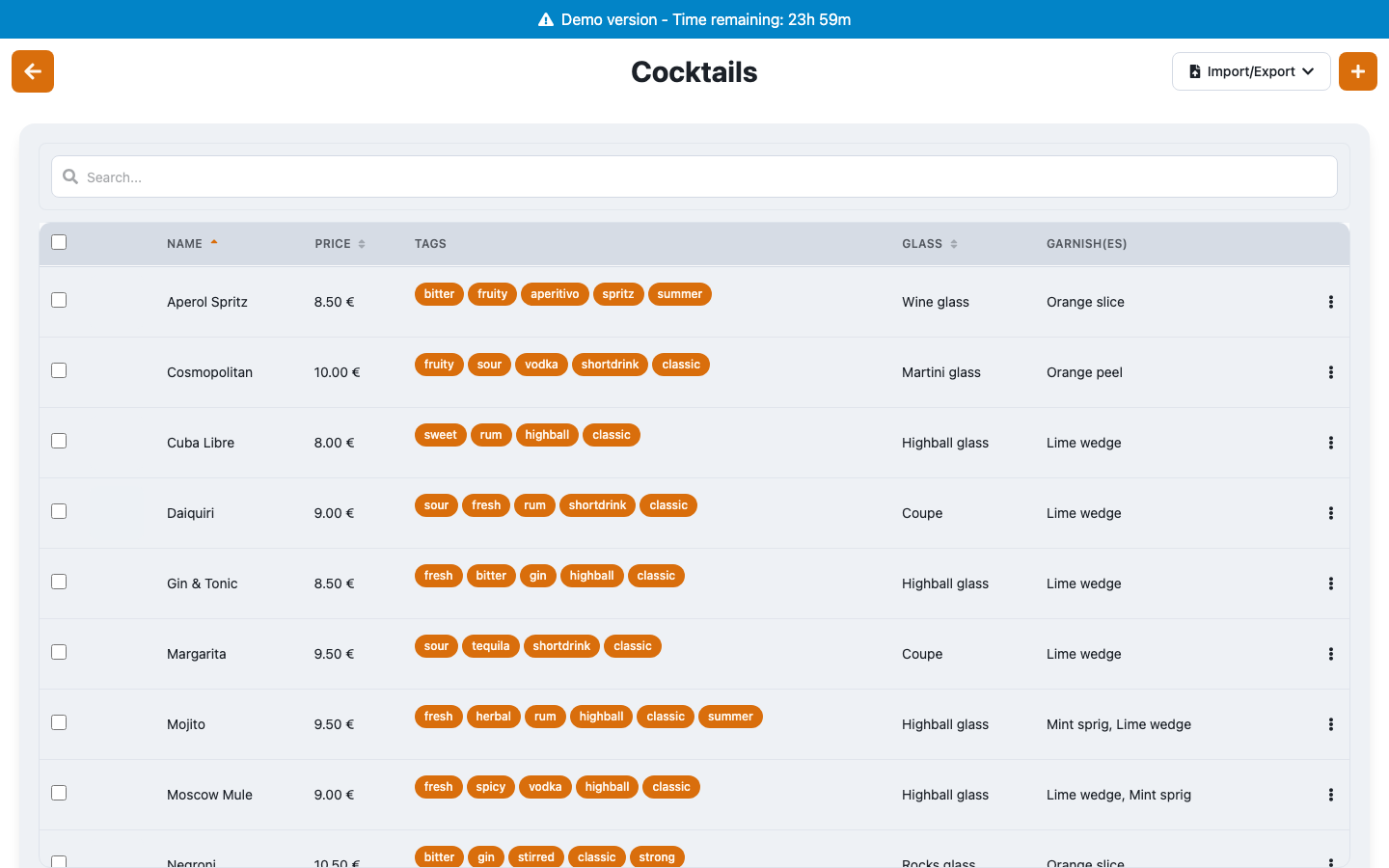
Create or edit a recipe
Select the correct workspace and open Manage → Cocktails. You need Manager or higher to create, edit, duplicate, import, archive or unarchive recipes. Permanent deletion requires Admin or Owner. For day-to-day service, a workspace User can open recipe details and mark a drink out without editing its recipe.
Before starting, make sure you have the ingredients and their recipe units, a glass, an ice option and at least one preparation method if you want to add steps. A Manager or higher can create a glass, ingredient or garnish with a + button next to the corresponding recipe picker. If a preparation method, unit definition or ice option is missing, ask an Admin or Owner to add it in Manage → Settings → Recipe master data.
- In the cocktail list, select + for a new recipe or click an existing cocktail name to edit it. Use the search field to find candidates first. A similar-name warning is a reason to check whether there is already a recipe to update or duplicate.
- In General, enter Name and select a Glass and Ice; these are required in the editor. Select the workspace's no-ice option when appropriate. Enter Price if the recipe should have a base selling price. This is not the ingredient cost, glass deposit, or necessarily the price after a card or guest menu override.
- Build the preparation steps and garnishes. In Texts, use General description for what makes the drink distinctive and History and origin for its background. Put service instructions, such as when to add a topper, in Preparation notes.
- Add tags and a photo if needed. Use Preview to check the recipe and Costs to check the material cost estimate. A line with a missing price or package quantity can contribute nothing to the total, so check the underlying ingredients if the estimate is lower than expected. Guests uses saved data, so review it after saving.
- Select Create or Save. Reopen the recipe or find it in the bar's Cocktail search to check that the instructions read as expected. If an unsaved-changes prompt appears when you leave, return and save unless you intend to discard the edits.
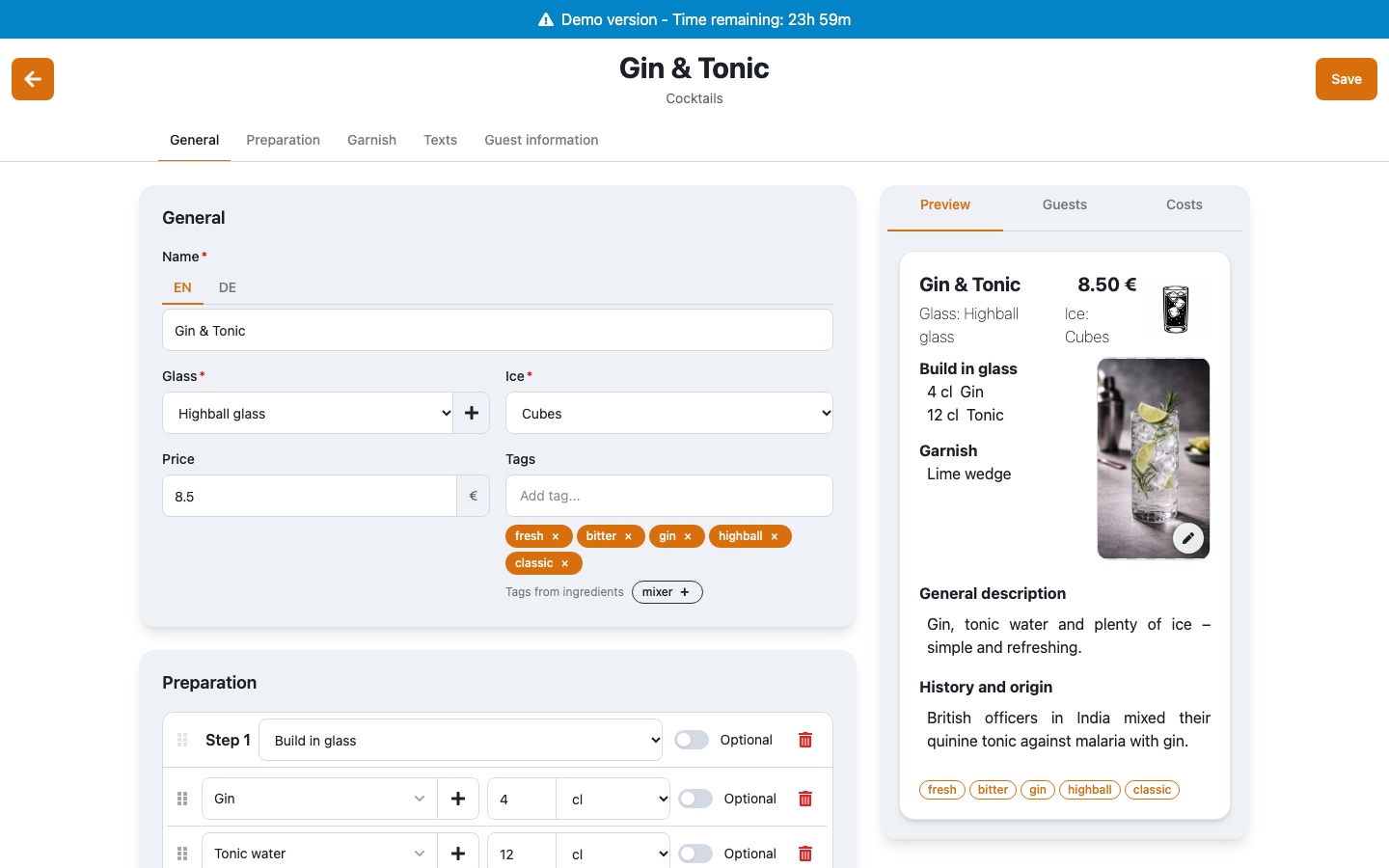
Write the preparation in order
- Under Preparation, choose Add step. Choose the Action, such as shake, stir or strain, from your workspace's list. Check this selector even if the editor starts the step with an action. Use a separate step when the preparation changes.
- In that step, choose Add ingredient, open Choose an ingredient..., and select the inventory record. Enter the Amount for one serving and select the Unit, for example
5andcl, not50andcl. Check the unit preselected by the editor. Enter an explicit numeric amount for measured ingredients so that instructions, costing and alcohol estimates can use it. - Use Optional for a step that can be omitted altogether or a line that can be omitted within a step. An optional ingredient may still be present in the served drink and can still contribute allergens. It is not an allergen exemption.
- Use drag handles to reorder steps, reorder ingredients within a step, or reorder garnishes. To move a line to a different step in the editor, add it in the intended step and remove the old line. The trash button in the recipe removes that line or step, not the master ingredient.
- In Garnish, choose Add garnish and pick the record. Use Additional description for instructions specific to this drink, such as
Express over the glass and discard. Set Optional if it can be omitted; use Alternative on a later row if it is served instead of a preceding garnish. Alternative garnishes appear as alternatives in the bar recipe and are not included in the cost calculation.
Example: For a gin sour, create a first step with your workspace's Shake action and add 5 cl dry gin, 2.5 cl lemon juice and 1.5 cl syrup. Add a Strain step without ingredients, choose the glass and ice used for service, and add a lemon twist if the team serves it that way. This records the amounts for one serving; do not use quantities for an entire event in the recipe.
If the unit is missing or shown as unavailable: The ingredient's saved Quantities determine the choices. Edit the ingredient and add the correct package quantity in that unit, or choose an existing compatible unit and convert the numeric amount yourself. Do not simply change 5 cl to 5 mL. If Add step is disabled, check whether the workspace has a preparation method. If the form will not save, check Name, Glass, Ice, step actions, incomplete ingredient or garnish rows, and whether any chosen image still needs to be cropped.
Adjust quantities without changing the recipe
For a one-off adjustment, open a cocktail's detail from the bar view or search, expand Adjust amount, and enter a percentage. At 150%, a 5 cl line displays as 7.5 cl; the reset button restores 100%. Where a price is shown, the detail can show the corresponding price adjustment. The percentage is local to the detail view: it does not save new recipe amounts or carry the adjusted amount into statistics. It does not change the queue count. For multiple servings or an event shopping list, use Quantity calculations.
Add photos and tags
In the recipe editor's Preview, choose Add image. Choose a file or a direct image URL (or use the camera option where offered), crop the portrait image, then save the recipe. To adjust a saved image, click it and use Choose new image, Crop again or Remove image. The saved file is the crop, not the original. Add or update the Image credit in the editor if attribution is required; replacing the image clears its previous credit. If an image URL will not load, choose an authorized local image file instead.
Under General → Tags, add labels such as citrus or signature. Under Tags from ingredients, click a suggested tag to copy it onto the cocktail. Suggestions are not inherited automatically after saving. Go to Manage → Tags & filters to control which tags are public, organize them in categories and set their labels. Verify what appears in the guest menu rather than assuming every bar tag is published.
Verify guest information and allergens
- Review the recipe's ingredients and garnishes in inventory, or update them together in Manage → Allergens & alcohol. Use the current products, not a similar recipe or a generic assumption about the drink.
- Save the cocktail, reopen it, and check the Guests tab. This Guest preview uses the last saved state and is available only after the first save. Check the listed allergens and additives and any messages about incomplete information or missing alcohol data.
- If necessary, open Adjust guest information in the recipe. Additional allergens and Additional additives supplement the values derived from ingredients and garnishes; they cannot remove a declaration that comes from a source record. Use Manual alcohol content (% ABV) only when you have a verified value to use instead of the estimate. Clear it to return to the calculation.
- Save, then check the relevant guest menu output. Its field settings determine which data guests can see. The recipe preview is a check of recipe data, not proof of what is published.
Allergens and additives from optional lines, optional steps and alternative garnishes can still be reported. A declaration is marked optional only when all its sources in the cocktail are optional. Hiding an ingredient from the public ingredient list does not remove its allergen information.
The ABV estimate uses the amounts and alcohol percentages of the standard (non-optional) ingredient lines, units that can be converted to mL, and the highest dilution among non-optional preparation steps. An Admin or Owner can review Dilution (%) under Recipe master data → Methods. If a required ingredient has no known ABV, amount or volume conversion, the calculation may show unknown, not alcohol-free. For example, record 0% ABV on a verified alcohol-free juice rather than leaving its ABV blank. A unit that represents a number of pieces may not have a meaningful mL conversion; do not invent one to make the estimate look complete. Treat the result as an estimate, and check ingredients and cross-contact with staff before making any claim to a guest.
Mark a cocktail out for service
- In the workspace bar view, open the drink's recipe detail (for example, from Cocktail search or its information button).
- Select Out today. The cocktail is marked unavailable until the next bar day starts, using the workspace time zone and configured day start. That is not necessarily midnight. See Settings and bar operations.
- If it returns sooner, open the same detail and select Available again.
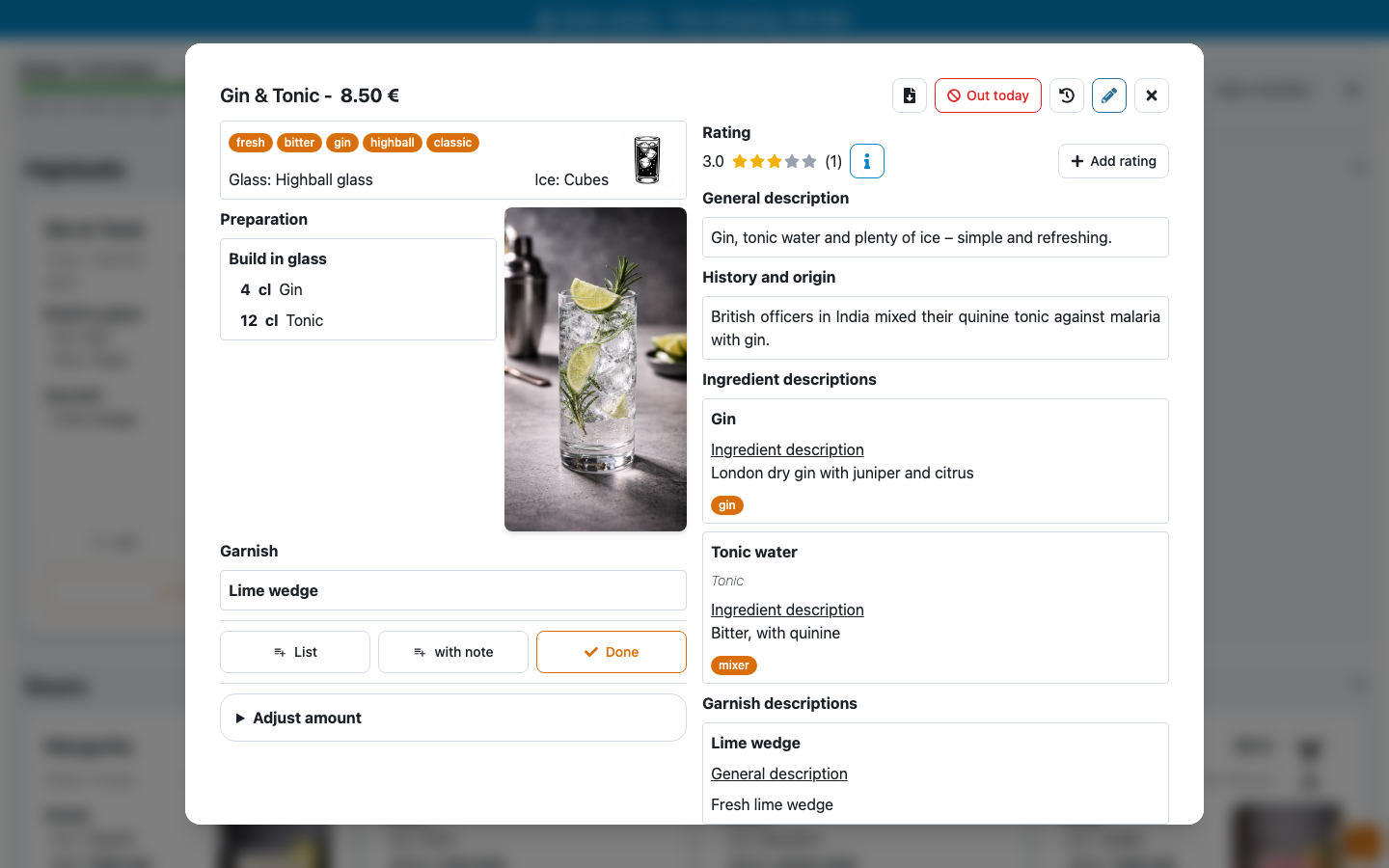
This is a cocktail-level service flag, not a stock count and not an archive. The bar recipe shows an out badge; a guest menu that includes the cocktail can still show it with an unavailable badge rather than removing it. Verify your guest output, and check any orders already in progress separately. If one unavailable ingredient affects several drinks, mark each affected drink.
Archive, duplicate or delete a recipe
- Archive: Open the recipe editor and use More actions → Archive cocktail. To archive several, tick the rows in Manage → Cocktails, open N selected → Archive (N) and confirm. Save editor changes first if you want to keep them. Archived recipes appear under Archived in the management list and are excluded from the active bar selection and guest menu output. They can still appear marked as archived in Cocktail search. Archiving does not delete the recipe or clear its inventory references.
- Bring it back: Open the recipe under Archived and choose More actions → Unarchive cocktail. Check the bartender card and guest menu where you expect the drink to appear.
- Duplicate: Use the row's three-dot menu → Duplicate, then enter a new name. The copy opens in the editor with its own steps, garnish lines and image, but it still uses the same shared ingredient, glass, ice and garnish records. Review the recipe, price and guest information before using it on a card or guest menu.
- Delete: If you are an Admin or Owner and truly need to remove the recipe, use Delete in its row menu and follow the confirmation prompt. Prefer archiving when you might reuse the drink. Export a copy first if you need the recipe for reference.
Use the row's Show history or the editor's More actions → History to inspect recorded changes.
Export and import recipes
Export recipes as JSON or PDF
In Manage → Cocktails, use the row's three-dot menu for one recipe, or tick the recipes and open N selected for a batch:
- Export as JSON creates a file for the recipe import wizard. It includes the recipes and the related records needed to map them in the destination workspace, including embedded images. It is not a workspace backup and does not move a published guest menu.
- Export as PDF is for reading or printing, not import. When available, choose Show image, Show general description, Show preparation notes, and Show history and origin, together with New page per cocktail, Show header, and Show page number. A large selection may take several minutes. If the PDF action is missing or the export fails because no PDF service is configured, use JSON for transferring recipes and ask the instance administrator about PDF support. A recipe PDF is different from the print output of a guest menu.
Import a Cocktail Manager recipe file
In the destination workspace, go to Manage → Cocktails → Import/Export → Import from JSON:
- Upload: Choose a JSON file previously exported from Cocktail Manager and select the cocktails to import.
- Mapping: Review the entities required by those recipes: units, ice, actions, glasses, garnishes and ingredients. Exact-name matches can be suggested automatically. For each dependency, choose Create new or Use existing; compare units, prices and products rather than matching by name alone. When mapping to an existing ingredient, check the recipe against that ingredient's units and guest information.
- Review: Resolve name conflicts. Choose Rename and import to keep both versions, Overwrite existing cocktail (warning!) only if you intend to replace the selected recipe, or Skip. Confirm the target before overwriting, especially if it is already used on a card or menu.
- Import: Review the summary, click Start import, and read the result. If a dependency is missing or the file is invalid, correct the mapping or use a fresh export and retry. After a successful import, check a saved recipe's steps, amounts, units, costs and guest preview before using it in service.
The cocktail editor does not import a complete recipe from a website URL. Import via link in the ingredient editor reads product details from supported shops, and the image editor can fetch a direct image URL; neither creates a cocktail recipe. Enter recipes from other sources manually or use a supported Cocktail Manager JSON export. For moving or protecting the whole workspace, see Backups.