Ingredients & bar inventory
Set up the records your bar reuses across cocktail recipes: ingredients, serving glasses, and garnishes. These records belong to the selected workspace. Editing a shared record changes the information used by recipes that reference it; it does not create a separate version for each cocktail.
Open your workspace and go to Manage → Ingredients, Glasses, or Garnishes. A Manager or higher can create and edit these records, duplicate them, and import JSON. Delete requires Admin or Owner. An Admin or Owner also maintains units, conversions, ice and preparation methods in recipe settings. If you cannot open an editor by clicking the record name, check the selected workspace and your role. If you have not set up a workspace yet, start with Getting started.
Add or update an ingredient
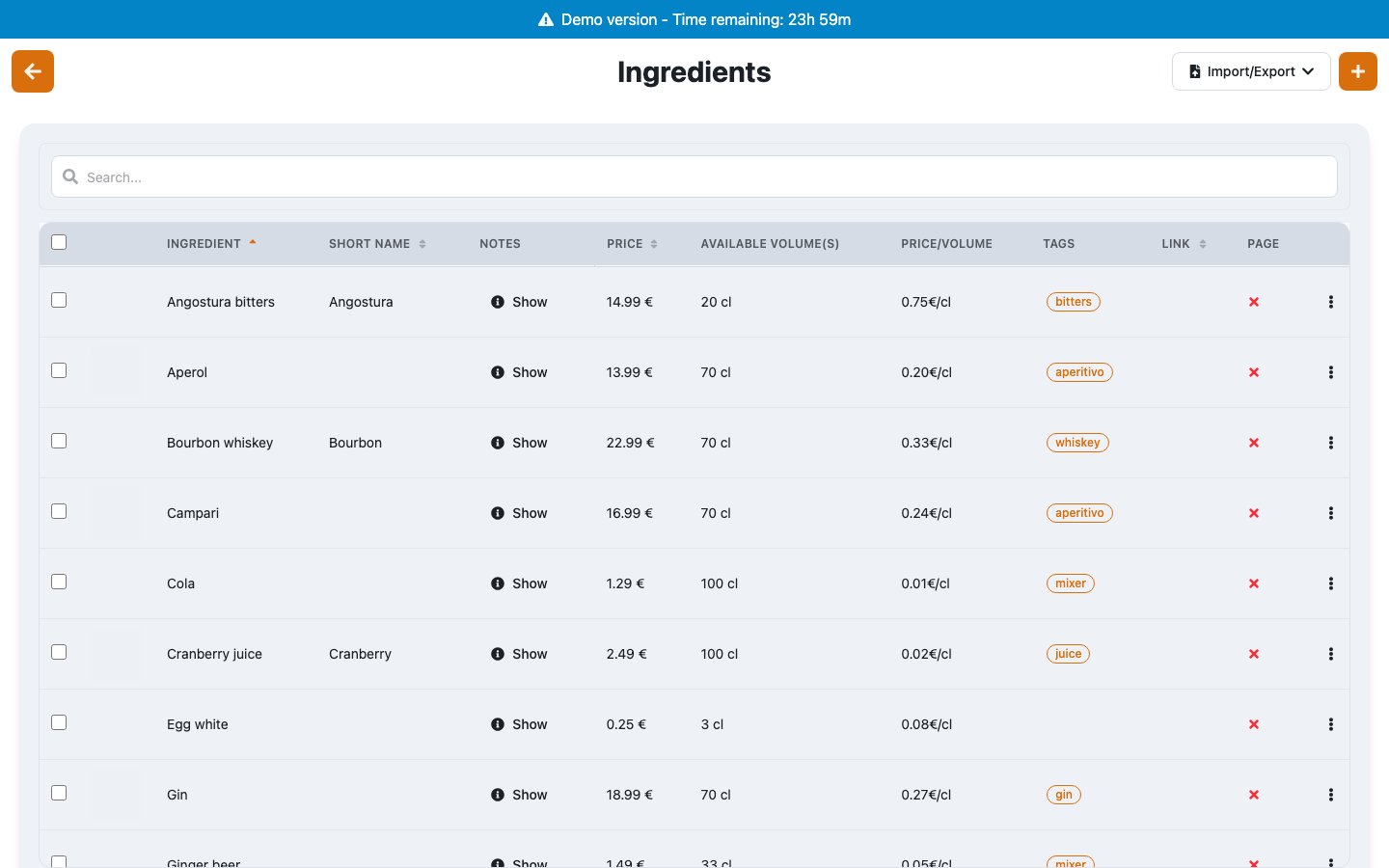
- In Manage → Ingredients, search for the product before creating it. If it already exists, click its name to edit it. Otherwise use the + button.
- In General, enter the Ingredient name. Use a name staff can find, such as
House dry gin. Custom label is an optional shorter name for the bar's recipe instructions, not the guest menu name. - Enter Price and the matching package quantity. Add any Tags the team uses to classify the ingredient.
- Add a General ingredient description and Notes if useful. For example, describe the product or its origin in the description and put storage or preparation instructions in Notes.
- In Guest information, record the product's alcohol content, allergens and additives. Then select Create or Save and check the result in the list.
A similar-name or similar-link warning is a prompt to check for duplicates. If the record is the same product, update it instead of creating a second entry. If it describes a different product, use a name that makes the difference clear.
Set a package price and quantities
Price is what you pay for a package. Each row in Quantities is how much of that package you get, expressed in a unit you want available in recipes. Rows are different ways to measure the same priced package, not separate prices or a count of packages in stock.
- For a €14.00 bottle of 700 mL, enter
14.00in Price. - Under Add another quantity, enter
70, selectcl, then click Add. Check that70 clappears in the list. The price per cl is €0.20, so5 clin a recipe costs €1.00 before other ingredients or garnishes. - If you also measure this ingredient in mL, add
700 mLor accept that equivalent from Quantity suggestions if shown. Only one row per unit is allowed. To change an existing quantity, remove its row, enter the corrected quantity and add it again. - Save. Back in the list, compare Available volume(s) and Price/volume with the package. For items sold by count, use the same approach: €3 for a pack of 12 means
12in your workspace's piece unit, not1. If you do not know the package price, leave it blank and do not rely on the resulting recipe cost until you fill it in.
A recipe's unit selector is based on the ingredient's saved quantity rows. A workspace unit or conversion by itself does not add that choice to the recipe. Save the ingredient with the needed quantity and reopen the recipe editor if its choices have not refreshed. You can save an ingredient without quantities after acknowledging the warning, but add a quantity before using it in a new recipe line.
Available volume(s) is not a stock indicator. These screens do not track on-hand amounts, automatically deduct stock when a drink is made, or provide an ingredient out-of-stock switch. If a product runs out, mark the affected cocktails Out today. Use Quantity calculations to plan how much to buy, not to record what is on the shelf.
Import product details from a link
You can enter a product link manually. The Import via link button is available for product pages from expert24.com, conalco.de, rumundco.de, or delicando.com. Paste the URL into the ingredient form and click the adjacent import button.
When data is available, the form can fill the name, a nonzero price, a quantity and an image. If the workspace has the CL unit, an imported volume can replace the current quantity list with a single cl row. Review the product, pack size, price and image before saving, especially when updating an existing ingredient. Add back any equivalents you still need. If the shop page cannot be read or the fields are incomplete, enter the values manually. This is a one-time form fill, not a live price or stock connection, and it does not verify allergens, additives or alcohol content.
Maintain guest information at the source
- Alcohol content (% ABV): enter a number from 0 to 100 from the product information. Use
0only when the product is confirmed to contain no alcohol; leave it empty when unknown. - Allergens and Additives: select what you verified from the current packaging or supplier information. For Cereals containing gluten or Nuts, you can also select the specific cereals or nuts where known.
- Information complete: turn this on only after reviewing allergens and additives. Leaving the lists empty is not the same as reviewing them and finding none.
- Name for guests: sets the guest-facing ingredient name. If blank, the ingredient name is used by default. Hide on guest menu omits the ingredient from guest ingredient lists; it does not remove its allergens or additives from the cocktail's guest information.
To review several ingredients or garnishes together, go to Manage → Allergens & alcohol. Choose Ingredients or Garnishes, use Only incomplete to find unchecked records, and select Save changes after editing. Review the saved cocktail's Guests preview and the actual guest menu after substituting a product. An app field is not a substitute for checking packaging, preparation and cross-contact.
Add a serving glass
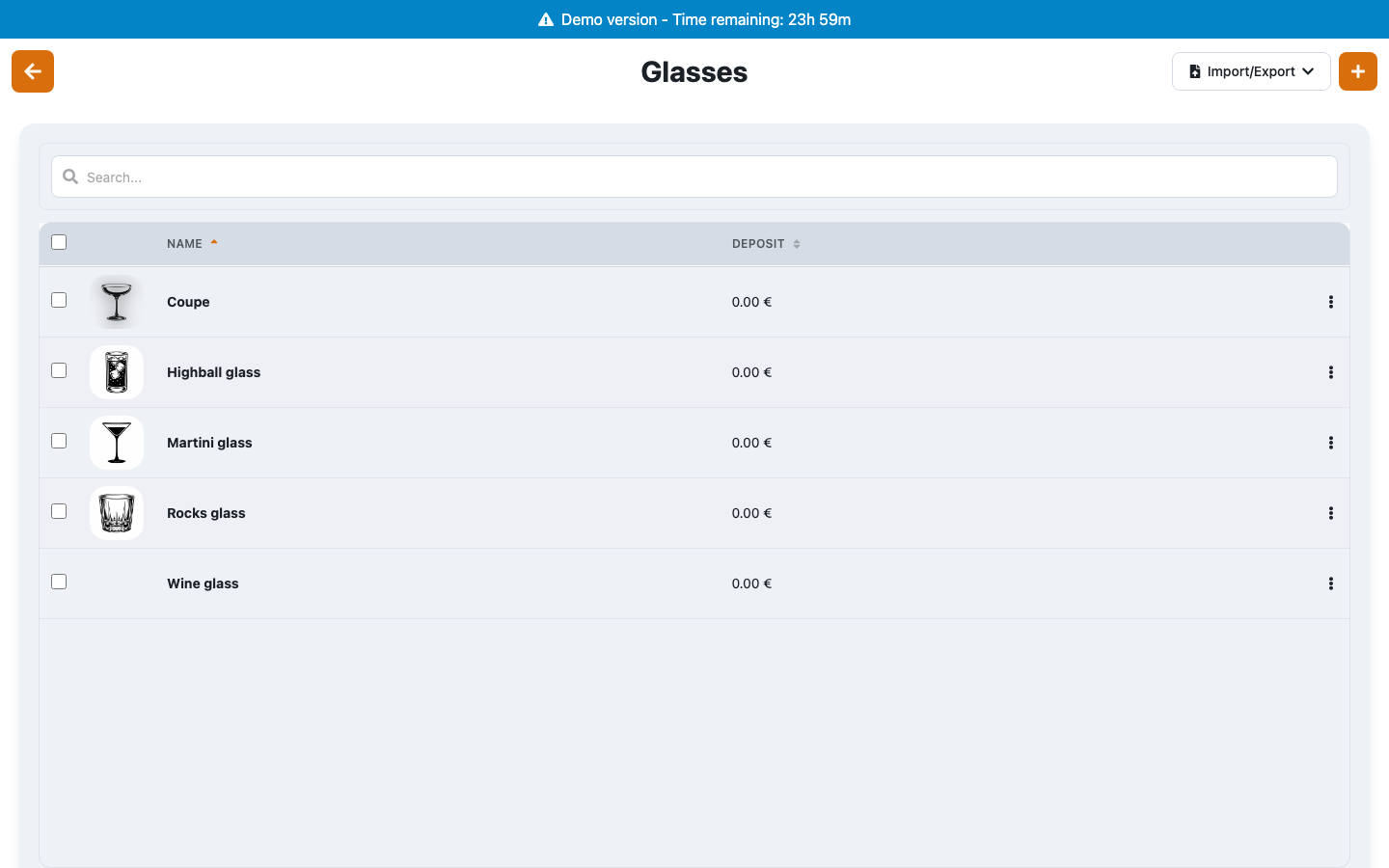
- Go to Manage → Glasses. Click + or select an existing name.
- Enter a recognizable Name, such as
Highball 30 cl. Enter the refundable Deposit per glass (0if none) and the Volume in cl (30for a 300 mL glass). A volume of0leaves capacity unspecified. - Optionally add a photo and select Create or Save. When editing a cocktail, select the glass in General → Glass.
Glass capacity describes the vessel; it does not scale the recipe. Deposit is separate from the recipe's selling price. See bar operations for service and deposit handling.
Add a garnish
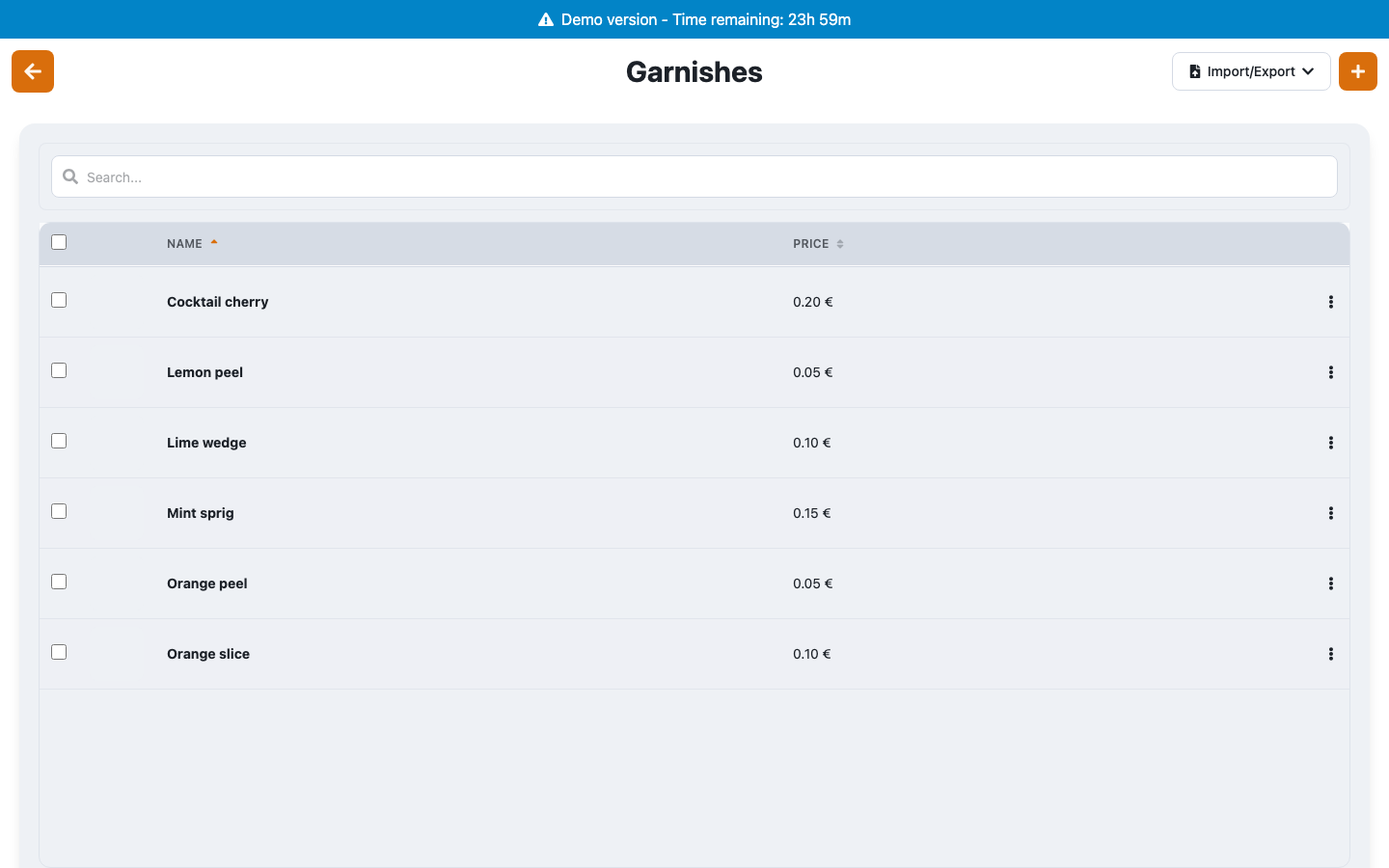
- Go to Manage → Garnishes. Click + or select an existing name.
- Enter the Name and, if known, the Price for one prepared garnish. For example, if a €1 orange makes five twists, use €0.20 per twist rather than the price of the whole orange.
- Optionally add a photo, a General description, and Notes for storage or preparation.
- Check Allergens, any applicable allergen sources, and Additives in Guest information. Mark Information complete when checked and then save.
Use a garnish record for something served as a finishing touch. Use an ingredient measured on a preparation line for something mixed into the drink. The cocktail editor controls whether a garnish is optional or an alternative and can carry a cocktail-specific note without changing the shared garnish.
Add or replace an inventory image
Click Add image or the existing image tile. Choose an image file or load a direct image URL; on supported mobile devices you can also use the camera. Crop and apply the square image, then save the main form. In Edit image you can replace, crop again or remove the photo. Enter an Image credit where the editor offers it, and check it again when you replace the image. Only the crop is stored, so keep the original file if you may need a different crop later.
Set up units, conversions and ice
An Admin or Owner can open Manage → Settings → Recipe master data. Use a consistent set of units and labels across the workspace. If team members work in different content languages, see Settings for language and label setup.
Units and conversions
- Under Units, choose Add. Enter a unit key (for example,
CLorPIECE) and the display labels for the languages you use. - Under Conversions, choose Add. Select the source and target units and set a positive factor: one source unit = factor × target unit. For example, from
cltomLuse10, not0.1. - Check the inverse and open Auto-generated conversions if you need to check implied conversions through another unit. Edit the manual conversion rather than an auto-generated row. Do not enter a second manual conversion for the same pair in reverse.
- Open the ingredient, verify the Quantity suggestions and add the measurements you want available in recipes. A conversion change is not a bulk rewrite of saved ingredient quantities or recipe amounts.
Use global conversions for relationships that are true throughout your workspace, such as cl to mL. Do not define a universal bottle-to-cl or piece-to-mL factor when bottle sizes or yields vary by product. Record the product's specific package quantity on the ingredient instead.
Ice options
In Ice, select Add and enter the key and labels. Create choices that match what the team serves, such as Cubes, Crushed ice, or No ice. Use Edit to change display labels. Choose an ice option in each recipe's General → Ice field, including a no-ice option if the drink is served without ice.
Ice here is a serving instruction, not a stock balance or a recipe quantity. Deleting an ice option clears its references in recipes. Replace it in the affected recipes first if they still need an ice choice.
Organize tags and guest filters
Add tags in the Tags field of an ingredient or cocktail. Reuse existing spellings so staff can filter consistently. An ingredient tag can be offered as a suggestion in a cocktail editor; it is not automatically added to the cocktail.
Under Manage → Tags & filters, a Manager or higher can organize tags already in use. Assign a Category, set display Labels for content languages, choose a Color, and control Public visibility. Use Show as guest filter on a category if it should be available for guest filtering, then save. A non-public tag stays internal; also check that the guest menu output is configured to use the intended tags or categories. For example, keep a staff-training tag private and make a citrus tag public only if it is useful to guests. Tags do not supply allergen declarations.
Duplicate, check references or delete records
Open the three-dot menu at the right of an ingredient, glass or garnish row. Duplicate creates a new record with the name you enter and opens its editor. Review any copied values, including photos and guest information. Existing recipes continue to reference the original. Use Show history to inspect changes rather than making a duplicate just to check what changed.
Ingredients, glasses and garnishes have no archive action. Keep unused records if recipes still need them. If an Admin or Owner needs to delete one:
| Record | What happens when you choose Delete |
|---|---|
| Ingredient or glass | The app checks references and lists the cocktails that prevent deletion. Replace or remove the reference in each recipe, including archived recipes if listed, save, then retry. Archiving a cocktail does not clear its references. |
| Garnish | Deletion removes it from the cocktails that use it. Review dependent recipes and replace the garnish where necessary before deleting. |
| Unit | In Recipe master data, deletion is blocked if cocktail lines use the unit. Update those lines first; also review ingredient quantities and conversions that relied on the unit. |
| Ice | In Recipe master data, deletion clears the ice selection where used. |
Follow the confirmation prompt only after checking the impact. To take a drink off the menu without deleting its recipe or inventory records, archive the cocktail instead.
Move inventory records with JSON
Export: On the Ingredients, Glasses or Garnishes list, open a row's three-dot menu and choose Export as JSON, or tick multiple rows and use N selected → Export as JSON (N).
Import: Open the same kind of list in the destination workspace and choose Import/Export → Import from JSON. Upload a file previously exported for that type of record, select the entries, then resolve any name conflicts. Depending on the entry, choose Overwrite, Create anyway, Rename, or Skip. Review the summary and select Start import. Reopen the imported records to verify quantities, prices, labels and guest information. Ingredient package units are matched by name; if no match is found, the import can create a unit. Review the destination units and conversions after importing.
Overwrite changes the existing record, so recipes pointing at it will use the updated data. If an import reports an invalid entry, review the error and correct the file or export it again before retrying. Inventory JSON moves selected records, not the recipes that use them, the menu layout, or the workspace configuration. Use cocktail JSON to move recipes with their dependencies or Backups for a workspace backup.